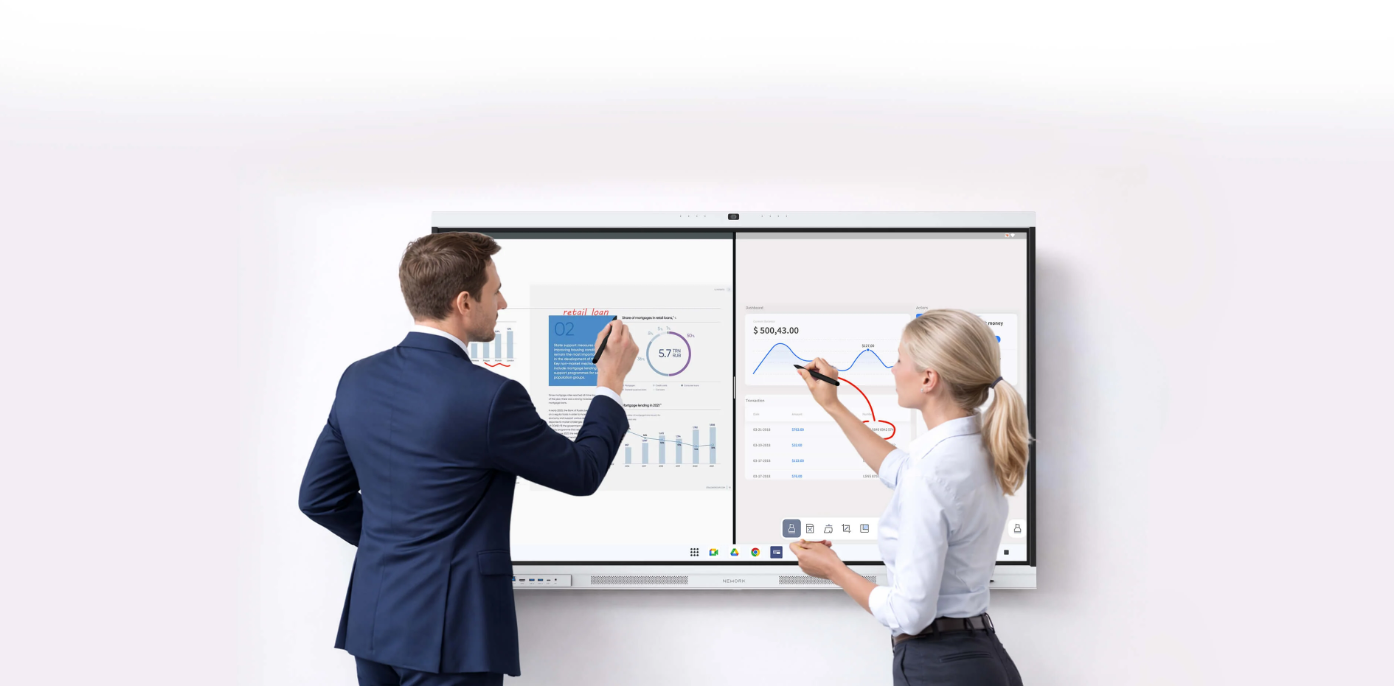
An interactive display demo should reflect the tasks people perform during real lessons, presentations, and team meetings. A screen may look impressive during a prepared presentation, but daily use involves switching between applications, annotating shared content, joining remote discussions, and accommodating different users. A structured checklist helps purchasing teams assess these functions under consistent conditions.
For schools, offices, and system integrators, a practical evaluation should cover usability, connectivity, sound, and accessibility. The Nework smart board range provides a relevant example of how interactive display features and conferencing capabilities can be assessed together. Buyers can use the following checks to compare equipment against their room requirements and operational priorities.
Check Writing Performance in Real Tasks
Start with handwriting rather than a prepared slide deck. Ask several users to write short notes, draw diagrams, and mark up a document. Observe whether digital ink follows the pen naturally and whether users can write comfortably across different parts of the display.
Test erasing, selecting, moving, and resizing annotations. These actions matter during classroom explanations and business discussions. Participants should also check whether written content remains readable when displayed to people sitting farther from the screen.
The demo should include saving and reopening annotated material. Check the available export or sharing options, then confirm that colleagues can access the resulting file through the intended workflow. Buyers should record which functions work natively and which require additional software.
Test Casting Across Devices
Screen casting connects a participant’s laptop, tablet, or other supported device to the shared display. During the demo, connect the devices that staff or teachers actually use. Check the setup steps, permission prompts, connection stability, and time needed to begin sharing.
Next, test a presentation containing text, images, and short video clips. Watch for delayed updates, interrupted playback, or layout changes. If several participants need to contribute, ask the supplier to demonstrate the supported switching process and any restrictions on simultaneous connections.
Network conditions also deserve attention. A successful connection on a quiet demonstration network may not reflect a busy campus or office. Ask the supplier about supported connection methods, network requirements, and security controls before drawing conclusions about deployment suitability.
Evaluate Touch Accuracy and Navigation
Touch performance affects how easily people interact with documents, diagrams, and applications. Test common gestures, including tapping icons, scrolling pages, zooming into images, and moving objects. Repeat these actions near the edges and corners of the screen to identify areas where interaction feels less precise.
More than one person should participate when group collaboration is part of the intended use. Ask two users to annotate a shared diagram or move separate objects. Observe whether their actions register correctly and whether the interface remains manageable during simultaneous interaction.
A Nework interactive smart board demonstration should be assessed against the same tasks used for competing products. Buyers should document response behavior, supported touch functions, and software dependencies instead of relying on general claims about responsiveness.
Assess Audio During Remote Meetings
Sound quality can determine whether a hybrid meeting remains productive. A useful audio test includes a speaker sitting near the display, another speaking from across the room, and a remote participant listening through the conferencing platform. Each person should speak at a normal volume while others take notes or discuss a document.
For professional video conferencing, the Nework smart board product information describes an eight-microphone array with AQUA DSP and voice pickup across a stated distance of 12–16 meters. Buyers can test voice coverage at different seating positions and compare how clearly remote participants hear each speaker.
The listed audio features also include AI noise reduction designed to filter more than 300 types of noise, echo cancellation, full-duplex double-talk, and dual 20 W speakers. During the demo, play typical office sounds, allow two people to speak in turn, and test whether overlapping conversation remains understandable. Actual results may vary with room acoustics and installation conditions.
Review Accessibility and Inclusive Use
Accessibility testing should involve people with different needs and levels of technical experience. Ask participants to navigate the interface, read onscreen text, operate common controls, and access shared materials. Check text size, contrast, menu clarity, and whether important actions rely solely on small visual icons.
Where supported, review operating-system accessibility tools, keyboard navigation, screen magnification, and compatibility with assistive technologies. Do not assume these functions are available simply because the display has a touchscreen. Confirm which features belong to the board, which depend on connected computers, and which require separate applications.
For schools and workplaces, the objective is to reduce unnecessary barriers during everyday collaboration. A short accessibility test with representative users can reveal practical issues that a standard supplier presentation might overlook.
Verify Software and Room Integration
A display must fit the existing IT environment as well as perform well during a demo. Check compatibility with the organization’s conferencing software, operating systems, file formats, and network policies. Confirm how software updates are delivered and whether administrators can manage settings across multiple rooms.
Installation requirements should also be recorded. Buyers need to review mounting arrangements, power and network connections, cable access, and the placement of cameras or external peripherals. These details affect installation planning and future maintenance.
The Nework interactive smart board can be evaluated within this broader purchasing process by testing its conferencing workflow alongside writing, casting, touch, and audio tasks. The aim is to understand how the equipment fits the intended room, not to judge it on isolated features.
Turn Demo Results into a Purchase Decision
A useful demo ends with documented evidence. Ask each evaluator to score writing, casting, touch, audio, accessibility, and integration against agreed requirements. Record any failed task, additional software requirement, or unresolved compatibility question. This creates a consistent basis for comparing suppliers.
Schools, businesses, and AV integrators can then prioritize issues according to their users and room conditions. A display intended for hybrid meetings may require closer audio testing, while a teaching space may place greater weight on annotation and accessible controls. A task-based checklist helps procurement teams connect product capabilities with practical needs before committing to deployment.
